In Case of Trouble
Before requesting technical support, please double-check that there actually is a problem with the drive.

|
The PC does not recognize the drive, or it fails to operate properly.
|
|
|
|
|

|
The power connector or interface cable may not be properly connected. Refer to the "Quick Start Guide" to verify the connections are correct. Also, verify that the connectors are firmly mated at the drive and PC ends.
|
|
|
Audio skips or data cannot be read from a disc.
|
|
|
|
|
|
- The disc may be inserted upside down (the label should face upwards).
- The disc may be incompatible.
Refer to "Compatible Discs".
- The disc may need to be cleaned.
- The disc may be scratched. Try another disc to verify that the drive works properly.
- Condensation may have formed on the disc or in the drive. Remove the disc and wait about an hour.
- There may be an incompatibility with DMA transmission. For details, see "FAQ & Tips". Deactivate the DMA transmission setting.
|
|
|
The disc does not eject.
|
|
|
|
|
|
- The Eject button cannot be used to eject a disc when the power to the drive (PC) is off.
- The disc cannot be ejected while it is being written to. Follow the procedure in the writing software to eject the disc.
- The PC may be hung due to an unrelated cause. If so, turn the PC off and back on.
- If the disc cannot be ejected despite the above, push a thin tool into the Emergency Eject Hole.
|
|
|
An error occurs when writing data.
|
|
|
|
|
|
- If the writing speed is very low, change to a higher speed. Depending on the disc media being used, higher writing speeds may work better. Changing the writing speed is done through the writing software.
- If the PC has a slow CPU, you may need to use a slower writing speed.
- Disable the PC's screensaver.
- Close all programs except the writing software. If the screensaver activates while writing data, the data transfer may become too slow, resulting in data writing errors.
- Close any resident hard disk utilities and disk speed-up utilities.
- In some cases, file fragmentation on the hard disk can cause problems. Defragment the hard disk.
Use the Disk Defragmenter found in the Accessories - System Tools or another suitable program.
- When using on-the-fly writing (using the DVD/CD RW drive together with a CD-ROM drive to copy data directly from one disc to another), cancel the on-the-fly setting. Alternatively, you can copy the data to a hard disk, then write to the DVD/CD RW from the hard disk. Because on-the-fly writing is affected by various factors, such as the CPU speed, amount of free memory, transfer speed for the reading drive, writing errors may occur with some systems.
|
|
|
A problem occurs when the PC starts, or the writing software does not operate properly.
|
|
|
|
|
|
Make sure that the supplied writing software and other writing software do not coexist on your computer. Especially if other packet writing software1)exists in your computer, the software and/or computer may operate erratically.
|
1)
|
Such as Drag-to-Disc (ROXIO), Direct CD (ROXIO), B’s CLIP (BHA), and DLA (Sonic).
|
|
|
|
Writing software other than that supplied with the drive is installed but does not work.
|
|
|
|
|
|
- The writing software may be incompatible with the DVD/CD RW drive. For details, please contact the supplier of the writing software.
- The installed version of the writing software may be incompatible with the DVD/CD RW drive. For details, please contact the supplier of the writing software. You may be able to upgrade the writing software to be compatible with the DVD/CD RW drive.
|
|
|
Problems arise after having operated normally for a while.
|
|
|
|
|
|
If operation becomes unstable after installing a program, uninstall it and try again. If the symptoms are eliminated, avoid installing and using the new program.
|
FAQ & Tips
|
|
|
Do I need to install device drivers?
|
|
|
|
|
|
No. All you need to do to use the drive is connect it.
|
|
|
How can I maximize the high-speed write performance
|
|
|
|
|
|
Activate the DMA transmission settings in Windows with the following procedure. This procedure may differ depending on your OS.
|
|
|
|
CAUTION
If the drive does not function properly, deactivate the DMA transmission settings.
|
Windows Vista/Windows 7
|
|
|
1.
|

|
Right-click [Computer], then click [Manage] on the shortcut menu.
In Windows Vista/Windows 7, right-click [Computer] on the [Start] menu.
|
|
|
|
2.
|
|
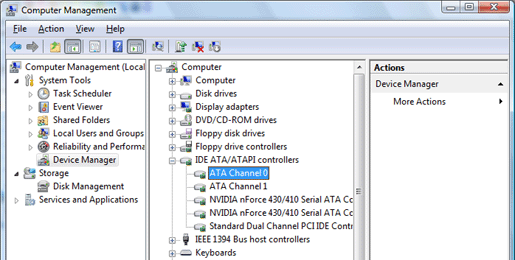
Click [Device Manager], then double-click [IDE ATA/ATAPI controllers].
|
|
|
|
3.
|
|
Double-click the channel to which the drive is connected.
|
|
|
|
|
|
|
|
|
4.
|
|
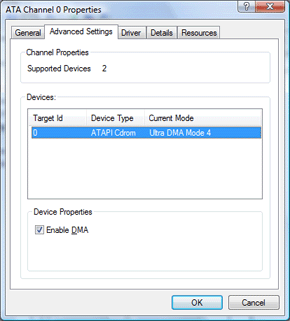
Click the [Advanced Settings] tab.
|
|
|
|
5.
|
|
Select the [Enable DMA] check box in [Device Properties], then click [OK].
|
|
|
|
|
|
|
|
|
6.
|
|
Follow the instructions on the screen and restart your computer.
|
Windows XP
|
|
|
1.
|
|
Right-click [My Computer], then click [Manage] on the shortcut menu.
In Windows XP, right-click [My Computer] on the [Start] menu.
|
|
|
|
2.
|
|
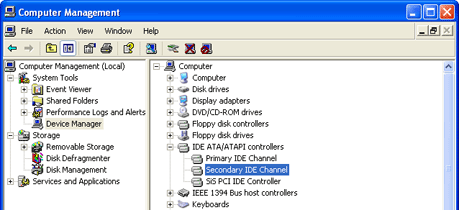
Click [Device Manager], then double-click [IDE ATA/ATAPI controllers].
|
|
|
|
3.
|
|
Double-click the channel to which the drive is connected.
|
|
|
|
|
|
|
|
|
4.
|
|
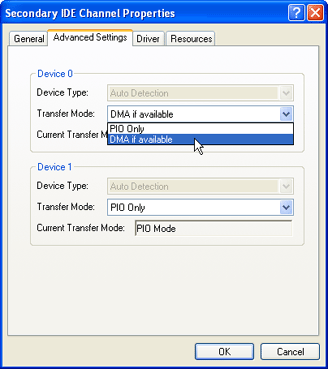
Click the [Advanced Settings] tab.
|
|
|
|
5.
|
|
In the [Transfer Mode] list, select [DMA if available], then click [OK].
|
|
|
|
|
|
|
|
|
6.
|
|
Follow the instructions on the screen and restart your computer.
|
|
|

